
PhotoCraft Online: Edit Photos with AI
Upload a photo and say what to change. PhotoCraft Online on Artcraft does the jobs you would open PhotoCraft or another desktop photo editor for, like cut-outs, cleanup, retouching and relighting, in one sentence and right in your browser.
- Free credits to start
- No download
- Up to 4 photos at once
- Nano Banana Pro and GPT Image 2
Your photo
Artcraft’s AI photo editor, not the PhotoCraft desktop app. The open-source PhotoCraft download is on the ArtCraft team’s GitHub.
What is PhotoCraft Online?
PhotoCraft Online is Artcraft’s browser-based photo editor that works by instruction instead of by tool. You upload a picture and type the change, such as “remove the people in the background” or “make it golden hour”, and an AI model in PhotoCraft Online returns the edited photo with everything else kept as it was.
The PhotoCraft desktop app gives you Photoshop-style tools: layers, masks, brushes and the pen tool. PhotoCraft’s tools are powerful once you know them. But most edits people open a photo editor for come down to a handful of jobs, and today’s image models can do those jobs from a sentence, usually in under a minute. PhotoCraft Online puts those models one upload away, with no install and no learning curve.
In PhotoCraft Online you can also add up to four photos at once and combine them, or ask for a different shape, such as a square post or a 9:16 story, and let the model extend the scene to fill it.
Edits you can make in PhotoCraft Online
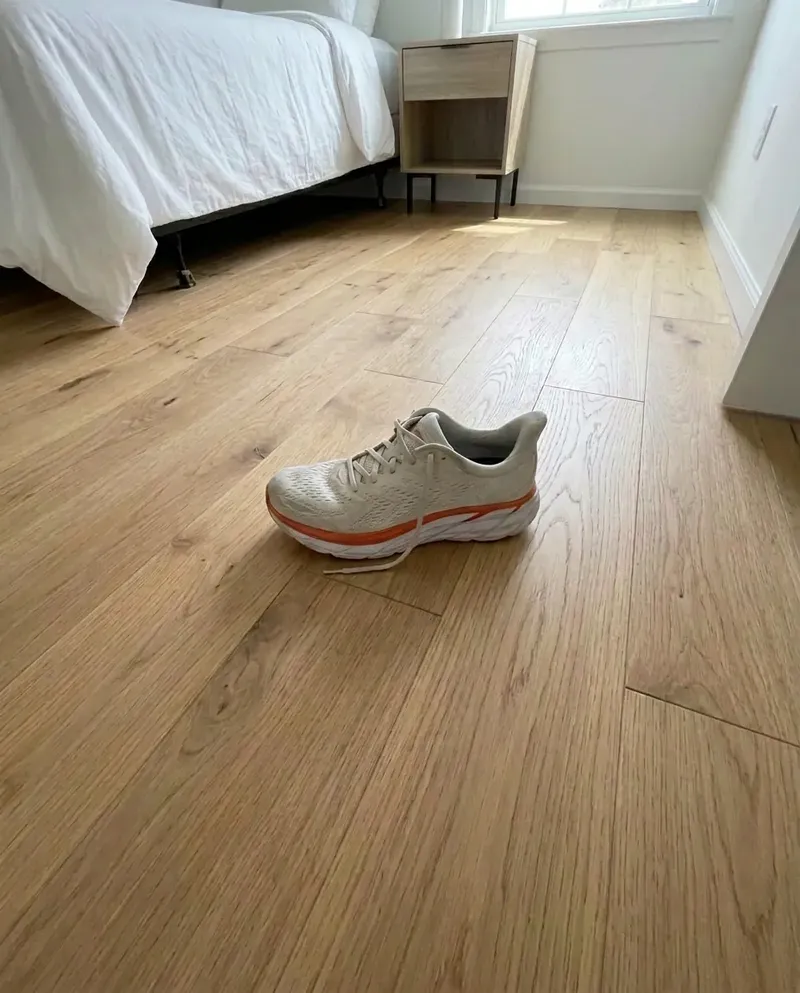
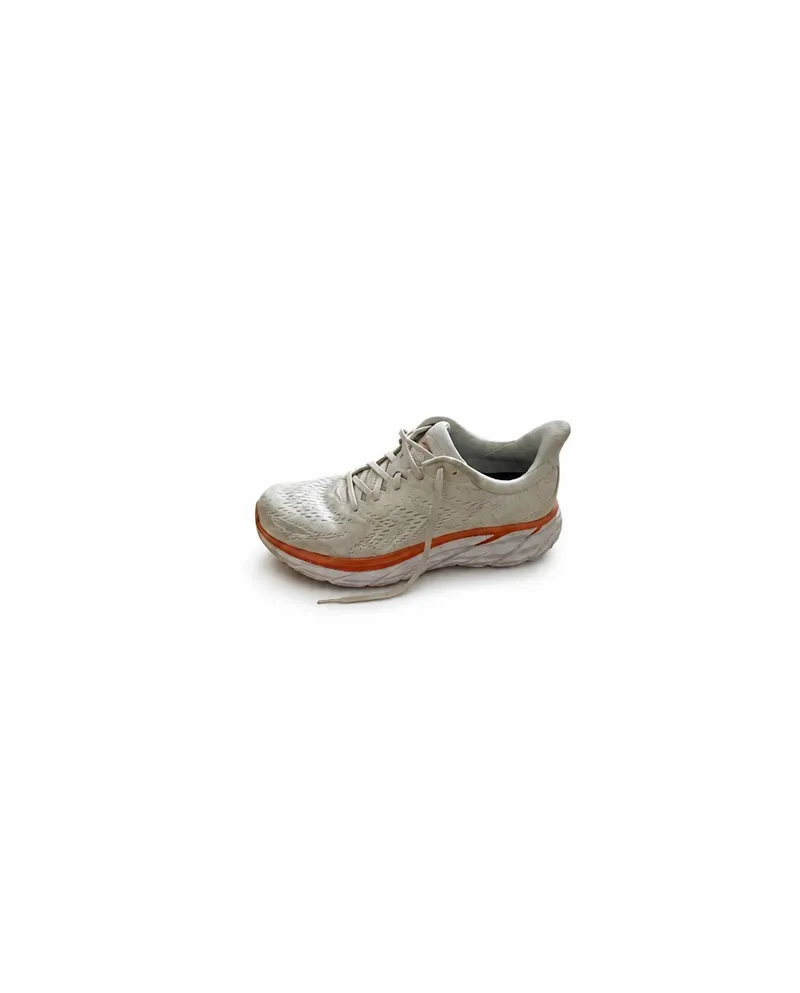
Each PhotoCraft Online card shows a photo before and after one sentence, and the sentence itself. Press Use this, add your photo, and edit.
 Before
 After
AfterRemove the background
Cut-outs for shop listings, profile pictures and slides, on white or any colour you name.
Show the sentence
Remove the background and place the subject on a plain pure white background. Keep the subject, its edges and its shadow exactly as they are.
 Before
 After
AfterRemove people and objects
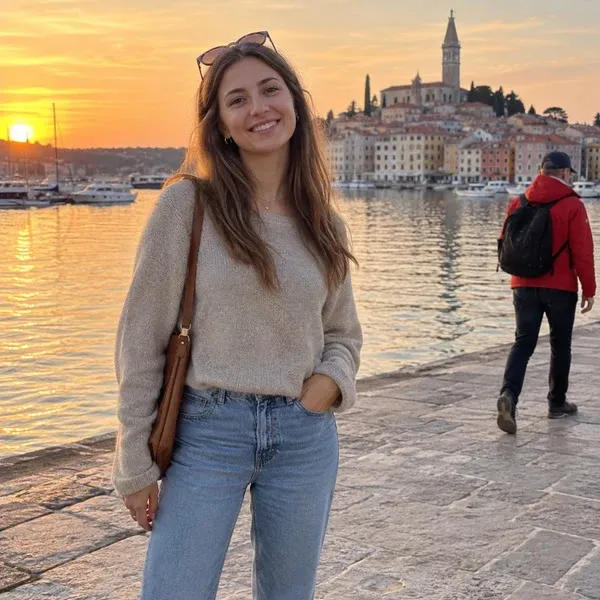
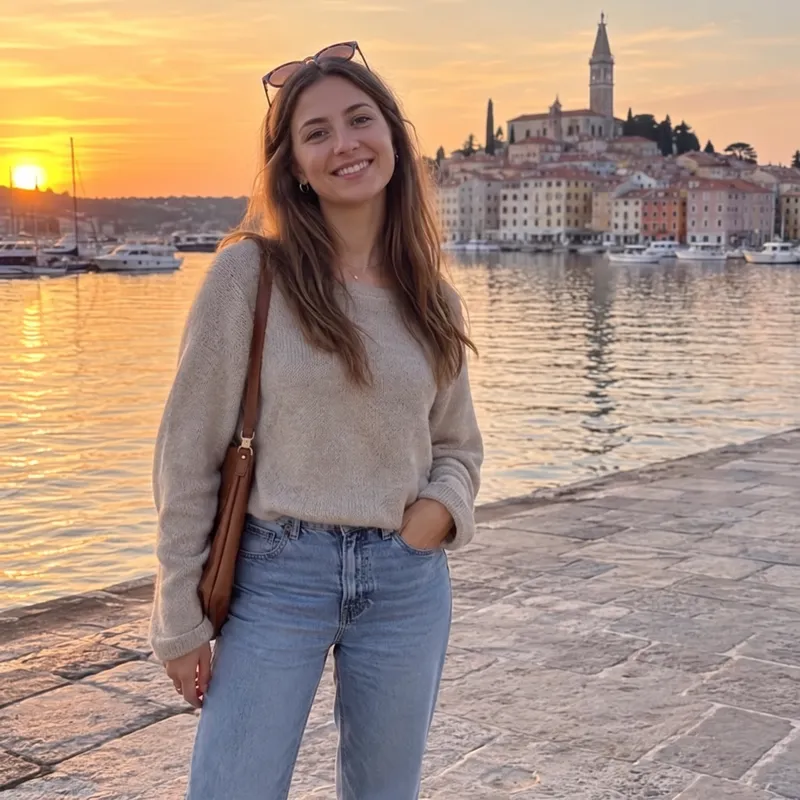
Clear photobombers, power lines, bins and clutter. PhotoCraft Online fills the gap so it looks like they were never there.
Show the sentence
Remove the people walking in the background and fill the space naturally. Keep the main subject, the light and everything else exactly as it is.
 Before
 After
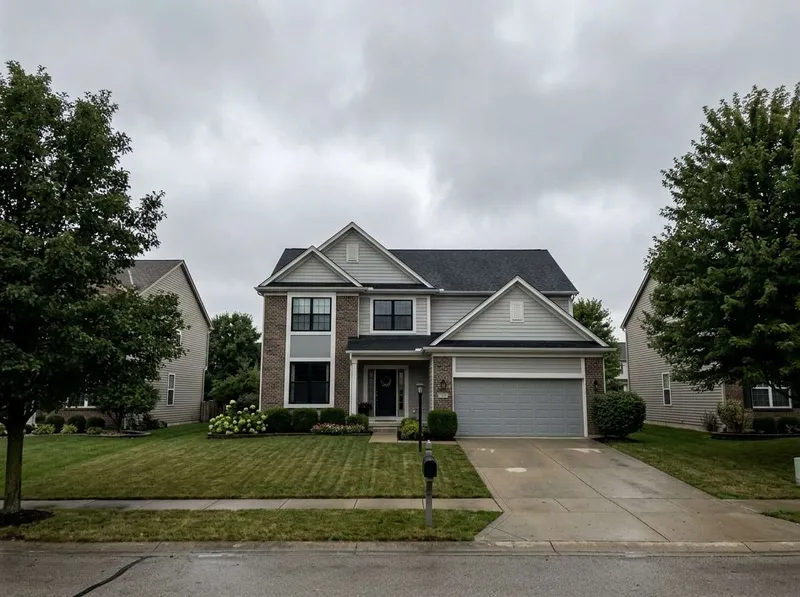
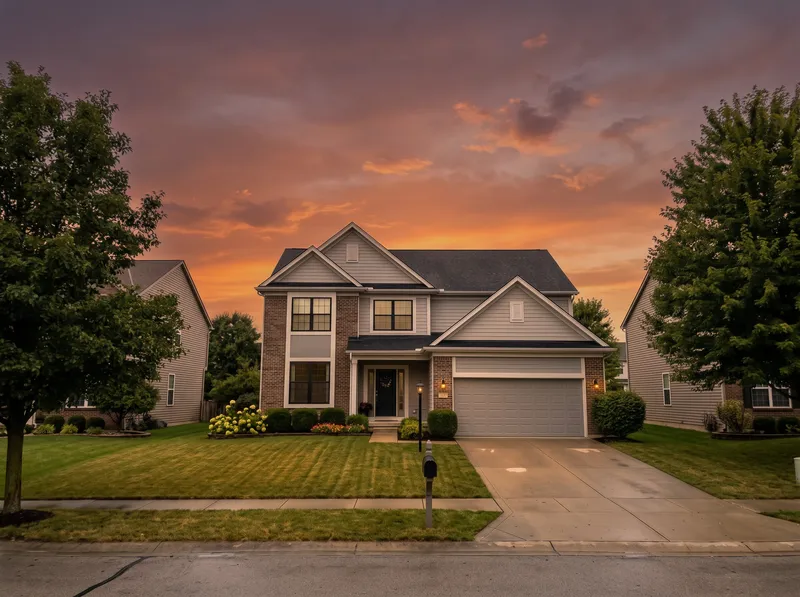
AfterReplace the sky or the background
Change the weather, the season or the whole setting while the subject stays exactly as shot.
Show the sentence
Replace the grey sky with a warm sunset sky and adjust the light on the scene to match. Keep the people and buildings exactly as they are.
 Before
 After
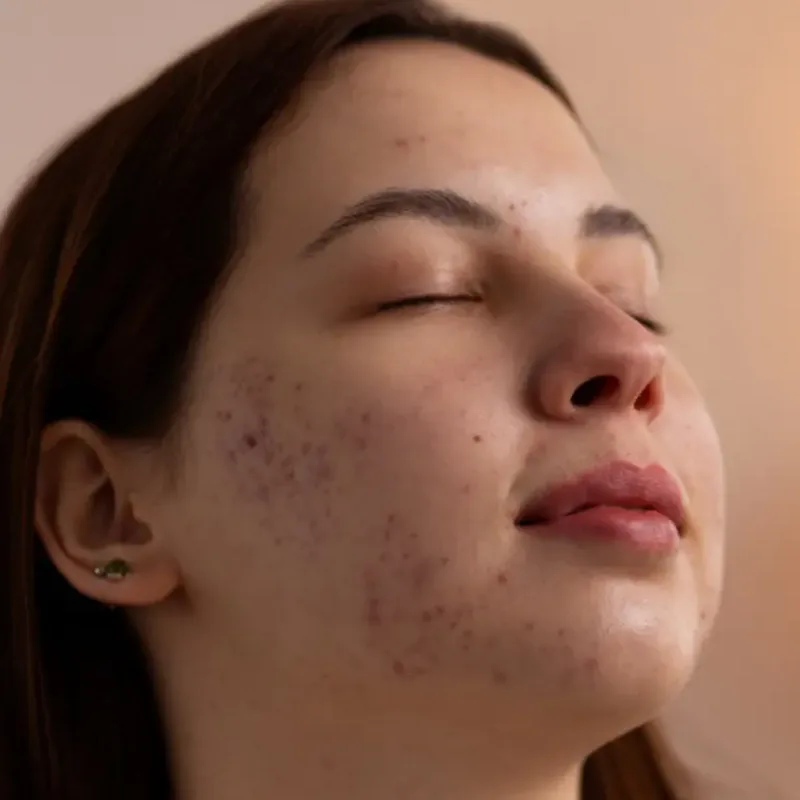
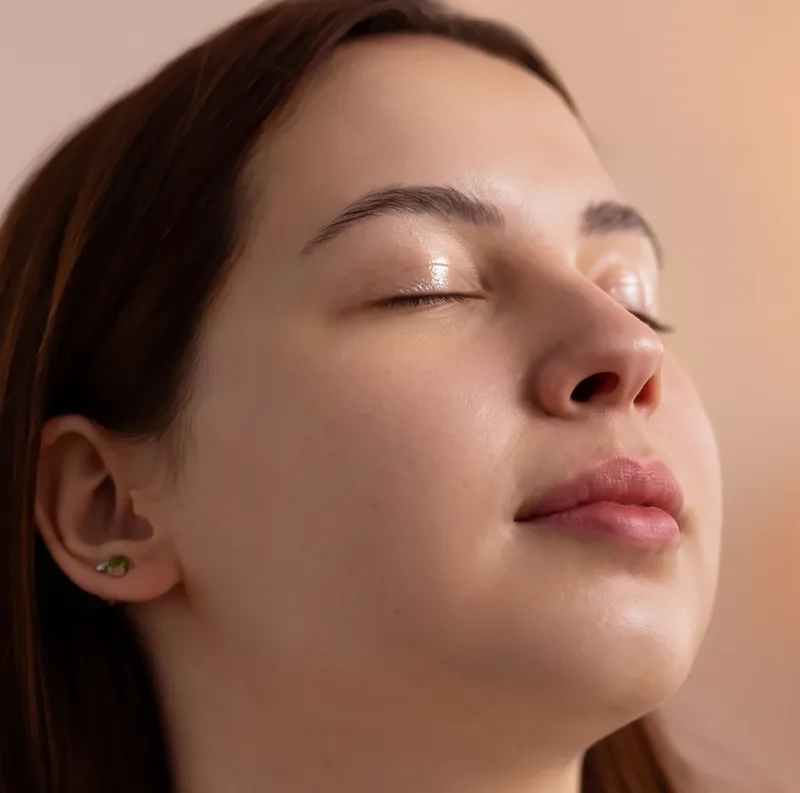
AfterRetouch portraits
Even out skin, brighten eyes and tidy stray hair without the plastic look.
Show the sentence
Retouch this portrait naturally: soften the skin a little, remove the blemishes, brighten the eyes slightly. Keep the face, its features and the skin texture realistic.
 Before
 After
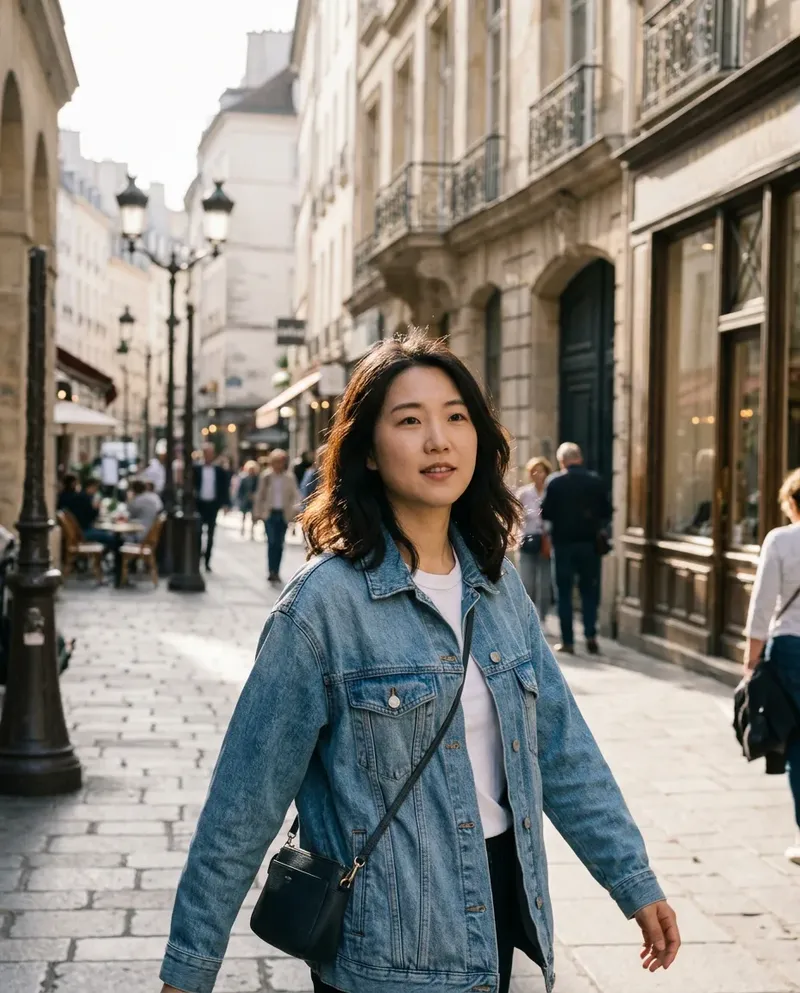
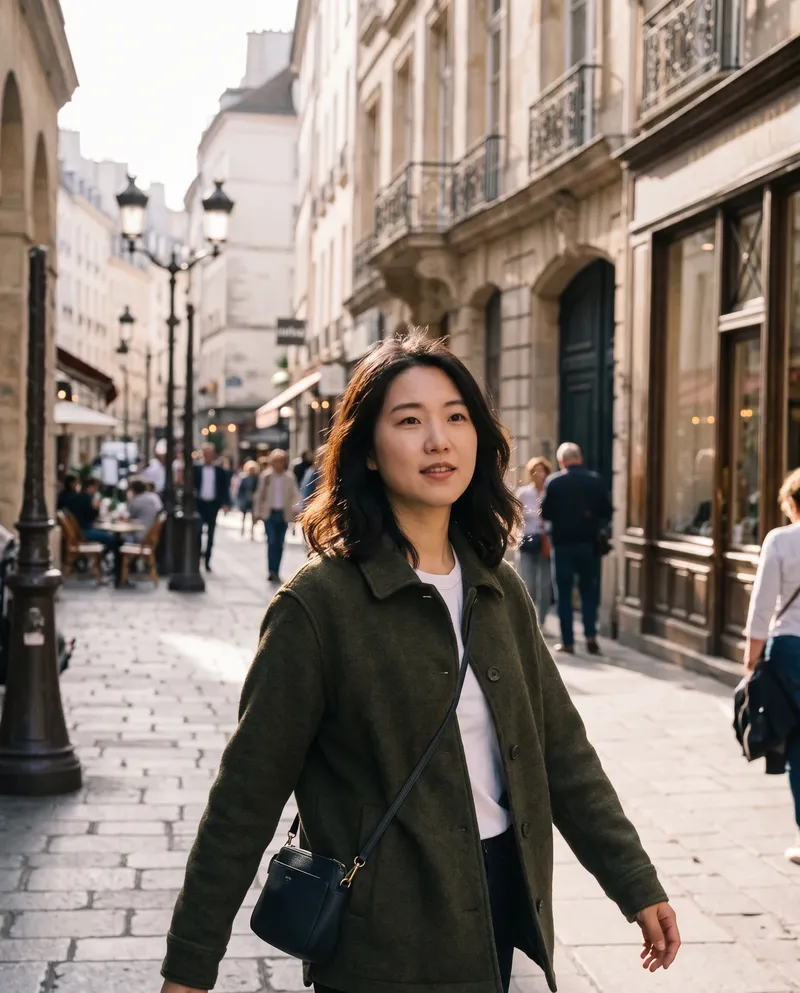
AfterChange clothes, hair and colours
Try a new outfit, hair colour or product colourway before you shoot or buy.
Show the sentence
Change the jacket to dark green wool. Keep the person, the pose, the background and the lighting exactly as they are.
 Before
 After
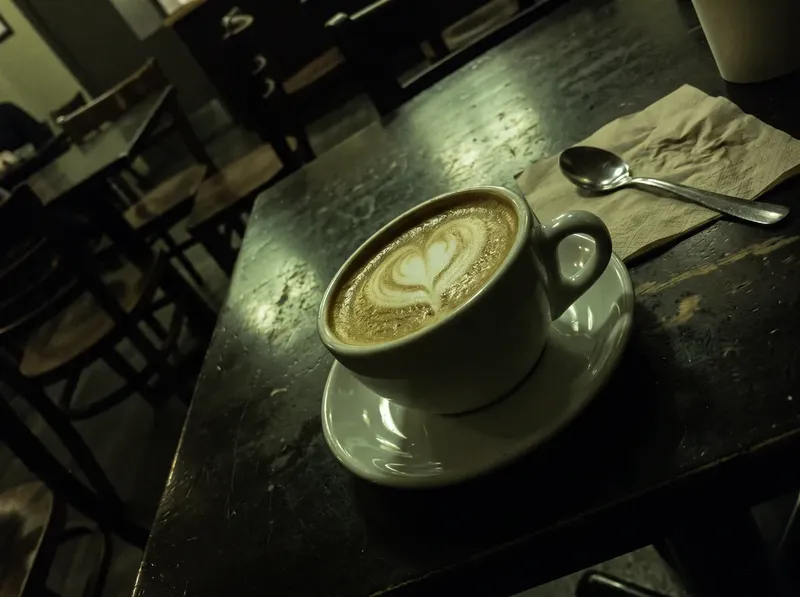
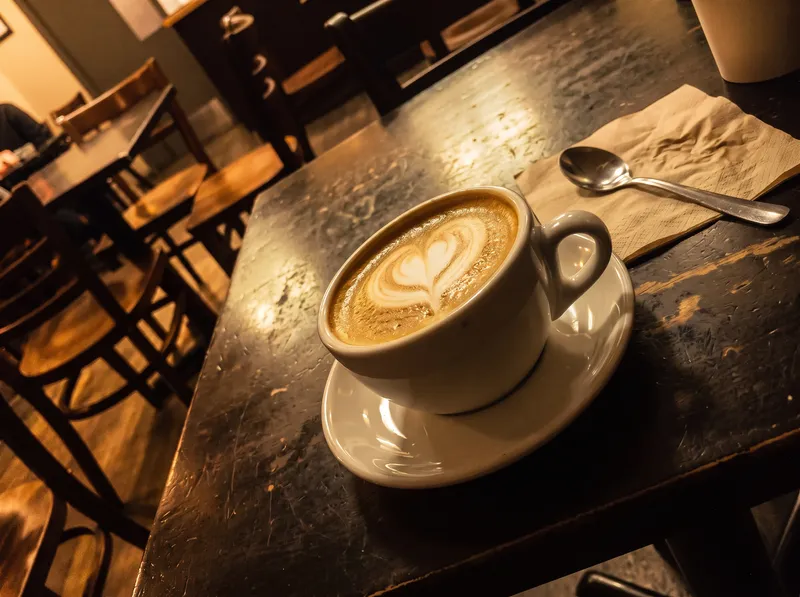
AfterRelight and colour grade
Fix a dull photo or match a set of images to one look.
Show the sentence
Relight the photo with warm golden-hour sunlight coming from the left, with soft long shadows. Keep the composition and every object the same.
 Before
 After
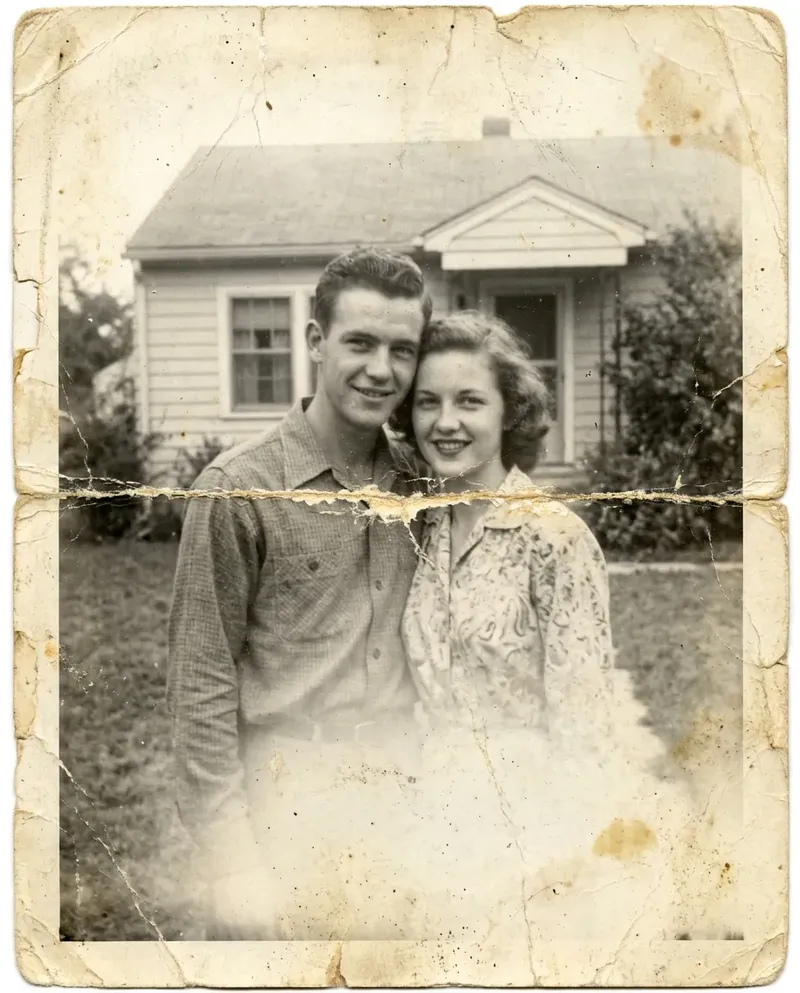
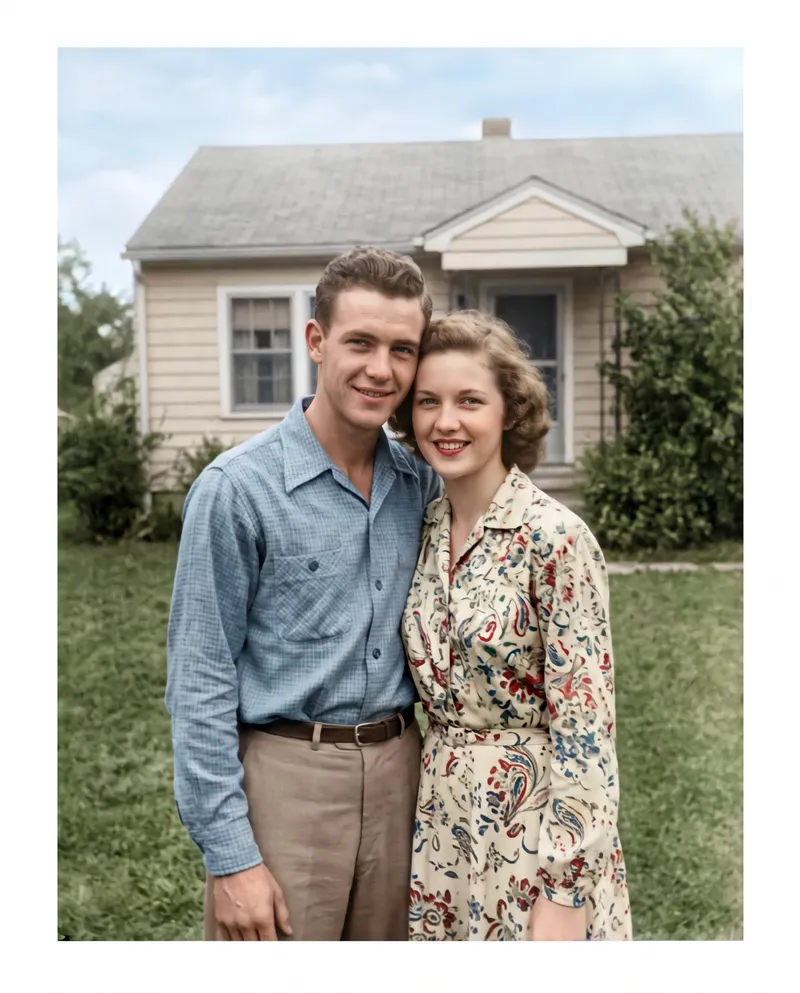
AfterRestore old photos
Repair scratches and fading, add colour, then turn the result into a short clip on Image to Video.
Show the sentence
Restore this old photo: repair the scratches, dust and creases, sharpen it gently and colourise it with natural, period-accurate colours. Keep every face exactly as it is.
 Before
 After
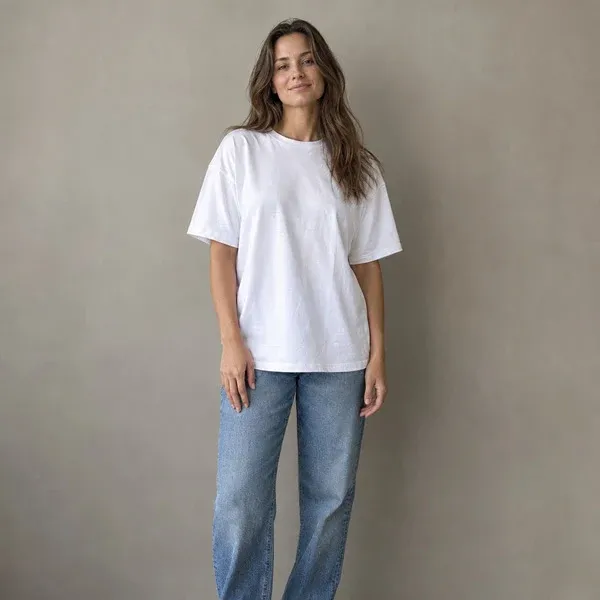
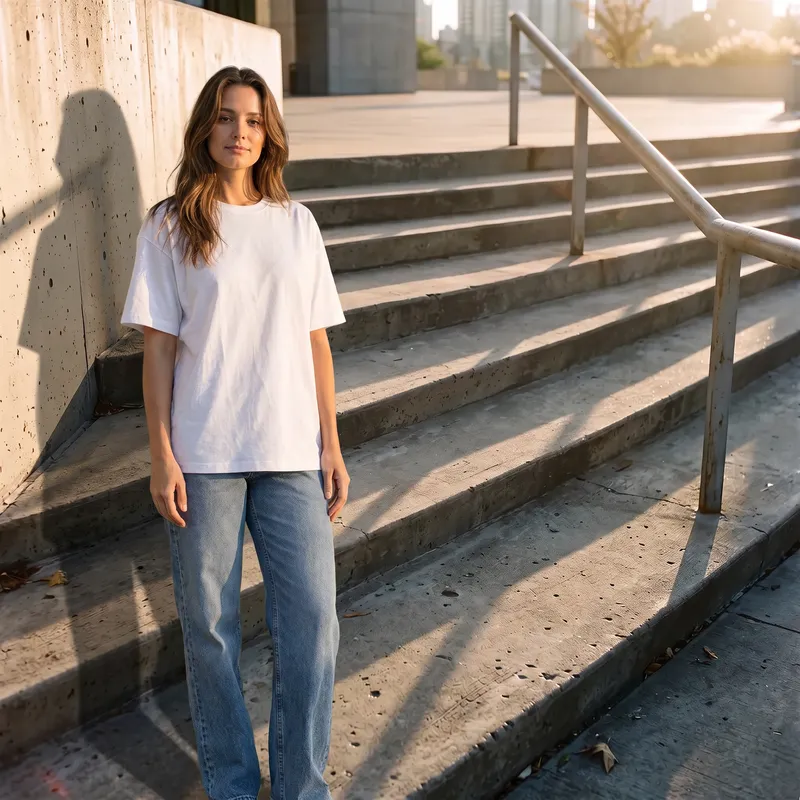
AfterAdd or replace text
Headlines on posters, packaging and thumbnails. GPT Image 2 is the model to pick for lettering.
Show the sentence
Change the headline on the poster to “Grand Opening” in the same font style, size and colour. Keep everything else on the poster unchanged.
 Before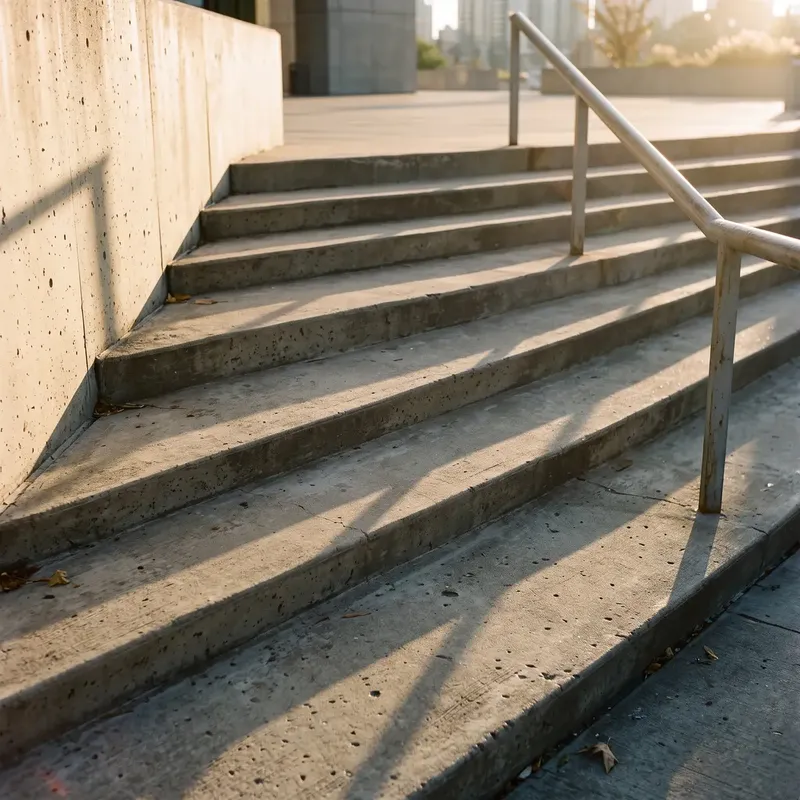
 After
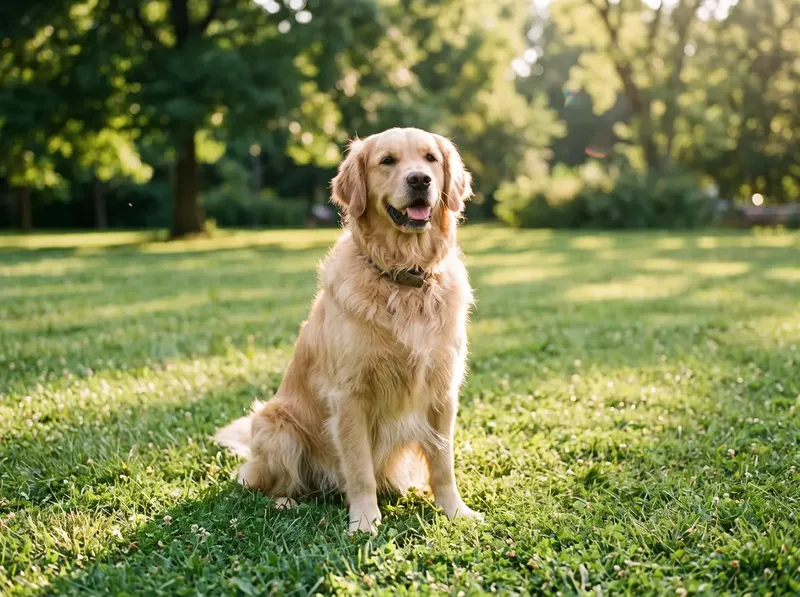
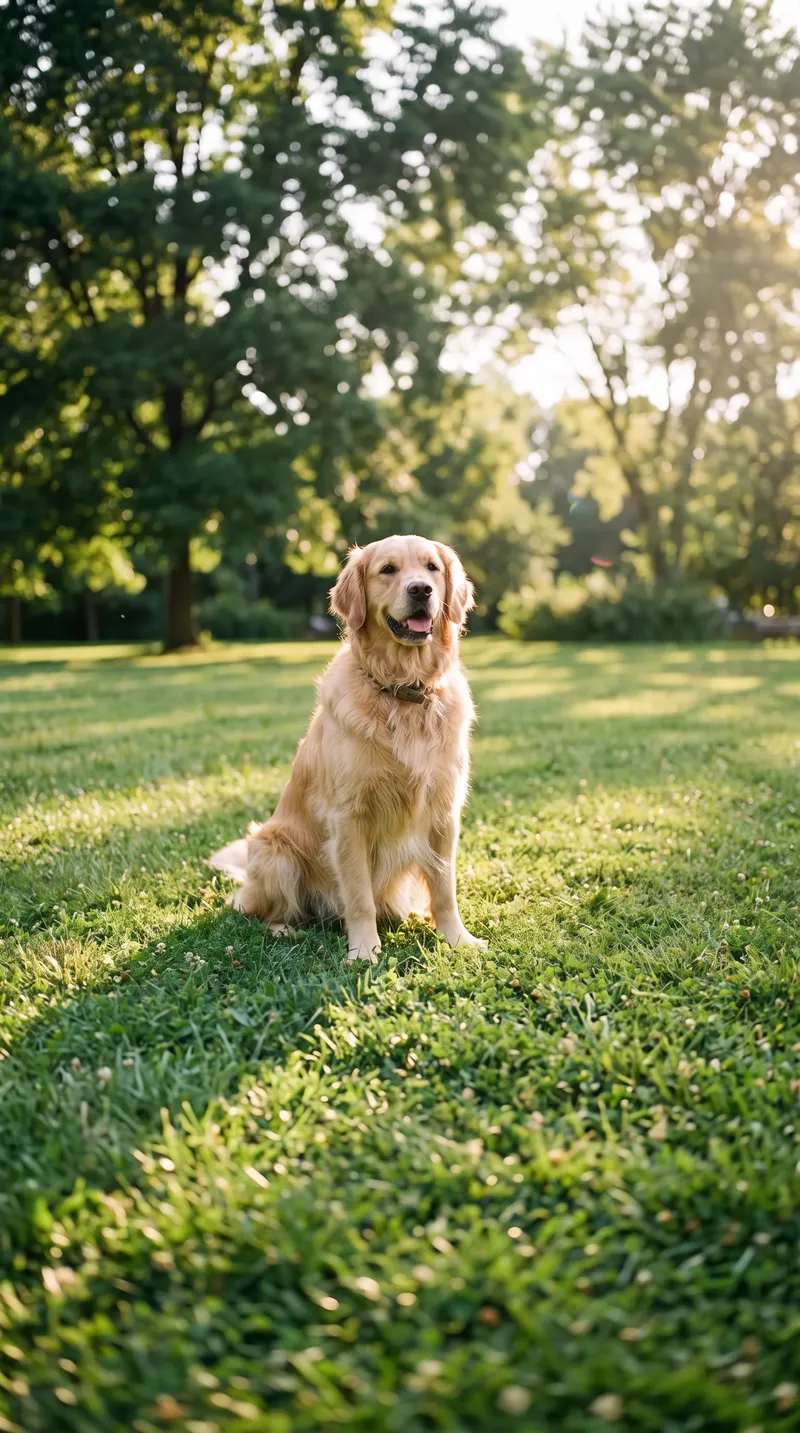
AfterCombine photos
Add up to four photos and put a person or a product from one into the scene of another, with matching light.
Show the sentence
Place the person from the first photo into the scene of the second photo, standing on the left. Match the light, the shadows and the perspective so it looks like one photo.
 Before
 After
AfterChange the shape
Turn a landscape shot into a square post or a 9:16 story. Pick the shape and PhotoCraft Online extends the scene.
Show the sentence
Extend this photo to fill the new frame. Continue the scene naturally on every side and keep the original part exactly as it is.
How to edit a photo in PhotoCraft Online
- 1
Upload your photo to PhotoCraft Online
Open PhotoCraft Online and add a JPG, PNG, WebP or HEIC from your phone or computer. Add up to three more to combine them.
- 2
Describe the change
Say what to change and, if it matters, what to keep: “remove the car, keep the street and the shadows as they are”.
- 3
Pick a model and a shape
Nano Banana Pro is the safest choice for keeping the rest of the photo untouched; GPT Image 2 is best for text. Original keeps your photo’s shape.
- 4
Download or keep refining
Download the result, or upload it to PhotoCraft Online again for the next change. One change per pass gives the cleanest results.
Tips for better edits in PhotoCraft Online
Name what should stay the same
“Keep her face and the background” stops PhotoCraft Online from changing more than you asked.
Make one change at a time
Background first, then lighting, then retouching. Each pass stays cleaner.
Be concrete
“Warm sunset light from the left” works better than “make it nicer”.
Start from a sharp original
PhotoCraft Online keeps the detail it can see. A blurry phone shot stays soft.
Say which photo is which
When you combine photos, the first is the one being edited. Refer to the others as “the second photo”, “the third photo”.
Run it again before rewriting
If one result is close, run the same sentence in PhotoCraft Online again before changing the prompt.
PhotoCraft desktop vs PhotoCraft Online on Artcraft
| Feature | PhotoCraft Online (Artcraft) | PhotoCraft desktop app |
|---|---|---|
| Install | None | Download PhotoCraft through the ArtCraft Launcher |
| Devices | Any browser, phones included | Windows, Mac and Linux |
| How you edit | Describe the change | Layers, masks, brushes, pen tool |
| Learning curve | None | Like learning Photoshop |
| PSD files | Not supported | Opens and saves PSD |
| AI edits | Built in: Nano Banana Pro, GPT Image 2 | Paid AI credits |
| Cost | Free credits, then credits | Free app |
Which PhotoCraft should you use?
Use the PhotoCraft desktop app if you need pixel-level control, layered files or PSD exchange with a designer. Use PhotoCraft Online when you need the finished photo quickly, on whatever device is in your hand, without learning PhotoCraft’s tools first. Many people use both: PhotoCraft Online for the heavy edit, the PhotoCraft desktop app for the last touch.
How does PhotoCraft Online compare with Photoshop?
Photoshop has AI edits too, but they come with a Creative Cloud subscription. PhotoCraft Online gives you the AI edits on their own, paid per edit in credits, with free credits to try them first.
Is PhotoCraft Online free?
PhotoCraft Online is free to start: every new Artcraft account gets 100 credits, with no card needed. Each PhotoCraft Online edit costs credits depending on the model and the output size, and the price shows before you press generate. If an edit fails, its credits come back automatically.
After the free credits, plans start at $39 a month for 5,000 credits, or buy a one-time pack of 4,000 credits for $49 that never expires. Every plan covers commercial use.
PhotoCraft Online FAQ
Is this the official PhotoCraft?
No. PhotoCraft Online on Artcraft is an independent AI photo editor, not affiliated with the ArtCraft team that makes PhotoCraft. It does the same kinds of edits as PhotoCraft, with AI models instead of manual tools. The open-source PhotoCraft desktop app is available from its team on GitHub.
Is PhotoCraft Online free?
Yes, to start. New accounts get 100 free credits for edits; after that you can choose a plan or a one-time credit pack.
Can PhotoCraft Online open PSD files?
No. PhotoCraft Online works with flat images: JPG, PNG, WebP and HEIC. For layered PSD work, use a layer-based editor such as the PhotoCraft desktop app.
Will the rest of my photo stay the same?
Mostly, yes. Models like Nano Banana Pro are built to change only what you ask for. Saying what to keep, for example “keep the face and the background”, makes it even more reliable.
Can I edit several photos together in PhotoCraft Online?
Yes. Add up to four photos to one edit. The first is the one being edited, and the others can be combined into it, for example a person from one photo placed into the scene of another.
Can I change the shape of a photo?
Yes. Original keeps your photo’s shape; pick another, such as 1:1 or 9:16, and the model extends the scene to fill the new frame.
Can I remove the background to a transparent PNG?
The models return a full image, so ask for a plain white or solid-colour background instead. That covers most shop listings and slides.
Does PhotoCraft Online work on my phone?
Yes. PhotoCraft Online runs in the browser on iPhone, Android, tablets and Chromebooks, with nothing to install.
Are my photos private?
Your uploads and results are saved to your own history, visible only to you, and you can delete them at any time.
Can I use edited photos commercially?
Yes. Commercial use is included on every plan, including the free credits.
Edit your first photo in PhotoCraft Online
Upload a picture and describe the change. Your free credits are waiting.
Edit a photoRelated tools
Other Artcraft pages that open the same studio, set up for a different job.